
Make.com Integration with CPV Lab | CPV One
Make.com (opens new window) is a visual automation platform. It lets you connect CPV Lab | CPV One with hundreds of other tools - without writing any code.
With the CPV Lab custom app in Make.com, you can automate repetitive tasks, build real-time alerts, and connect your tracking data to the tools you already use.
What you can do with this integration:
- Trigger automations when a new click or conversion is recorded in CPV Lab
- Trigger automations when campaign stats update
- Add new landing pages or offers to CPV Lab from a workflow
- Pull campaign stats and reports into other tools automatically
This guide shows you how to install the CPV Lab app in Make.com, connect your account, and build your first scenario.
Quick Summary
- Make.com Integration with CPV Lab | CPV One
- Quick Summary
- 1. Install the CPV Lab App in Make.com
- 2. Connect Your CPV Lab Account
- 3. Understand the Available Modules
- Example Scenario 1 - Add a Landing Page and Assign It to a Campaign
- Example Scenario 2 - Daily Conversion Report by Email
- Example Scenario 3 - Slack Alert When Conversions Drop
- Example Scenario 4 - Log Clicks and Conversions to Google Sheets
- Troubleshooting
1. Install the CPV Lab App in Make.com
The CPV Lab app is available as a custom app via a direct invitation link.
- Open this link in your browser: 👉 Install CPV Lab App on Make.com (opens new window)
- Log in to your Make.com account. If you don't have one, create a free account first.
- Make.com will ask you to confirm adding the CPV Lab custom app to your account.
- Click Install to confirm.
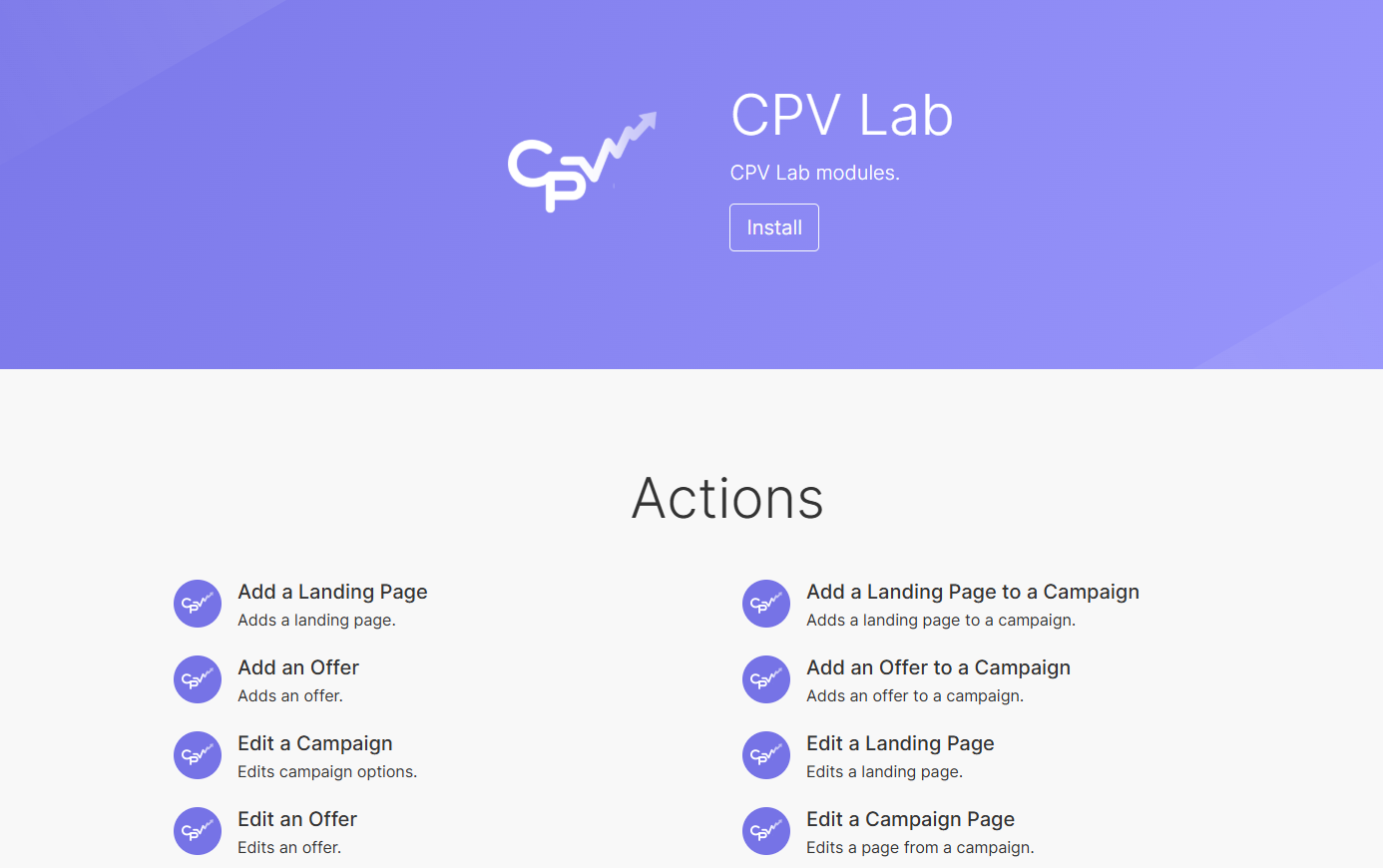
Once installed, the CPV Lab app will be available inside the Make.com scenario editor. You can find it by searching "CPV Lab" in the module search bar.
💡 Note: This is a custom app. It will not appear in the public Make.com app directory. You must use the invitation link above to install it.
2. Connect Your CPV Lab Account
Before you can use the CPV Lab app in any scenario, you need to connect it to your CPV Lab or CPV One account using your API key.
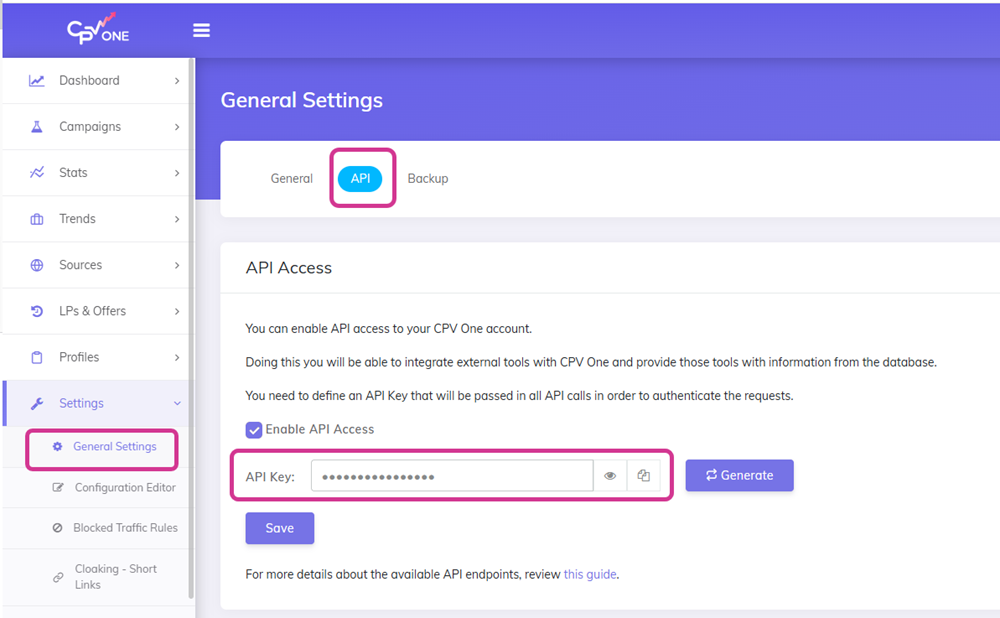
Get Your API Key from CPV Lab | CPV One
- Log in to your CPV Lab or CPV One account.
- Go to Settings ➡️ General Settings ➡️ API.
- Find the API Key field and copy your key.
Add the Connection in Make.com
- Open a scenario in Make.com and add a CPV Lab module.
- Click Add next to the Connection field.
- A new popup will open. Fill in:
- Connection Name - any name you will recognize (e.g. CPV One - Main Account)
- API Key - paste the key you copied from CPV Lab
- Base URL - enter your CPV Lab tracking domain
- For CPV One users: enter your CPV One account URL
- For CPV Lab users: enter your self-hosted domain (e.g.
https://tracker.yourdomain.com)
- Click Save.
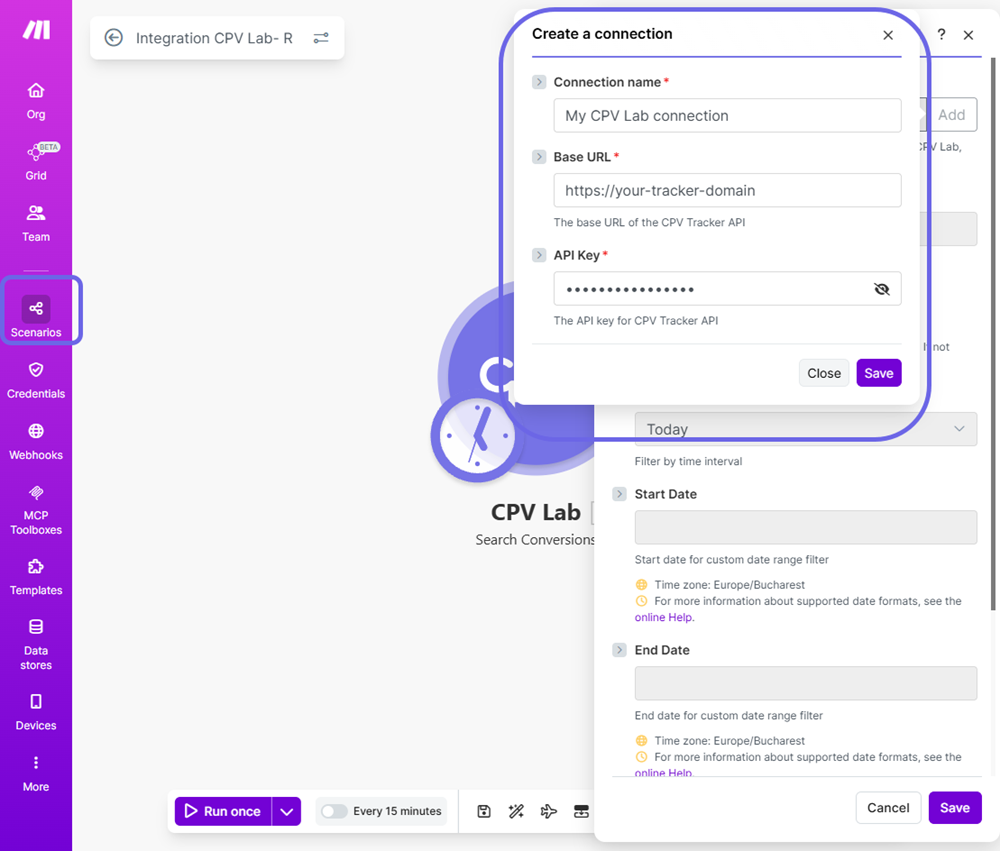
✅ Once connected, you can reuse this connection in all your CPV Lab scenarios. You won't need to re-enter the API key each time.
3. Understand the Available Modules
The CPV Lab app in Make.com allows the following Actions.
Actions - Make.com does something in CPV Lab
| Module | What it does |
|---|---|
| Add Landing Page | Creates a new landing page entry in CPV Lab |
| Edit Landing Page | Update a landing page entry in CPV Lab |
| Add Offer | Creates a new offer entry in CPV Lab |
| Edit Offer | Update an offer entry in CPV Lab |
| Add Landing Page to a Campaign | Assigns a landing page to an existing campaign in CPV Lab |
| Add Offer to a Campaign | Assigns an offer to an existing campaign in CPV Lab |
| Edit Campaign Options | Change some general settings for an existing campaign in CPV Lab |
| Get Campaign Stats | Pulls performance data for a specific campaign |
| Get Campaign Offer Stats | Pulls offers performance data for a specific campaign |
| Get Campaign Ad Stats | Pulls Ad performance data for a specific campaign |
| Get Campaign Target Stats | Pulls Target performance data for a specific campaign |
| Get Campaign Visitor Stats | Pulls real time visitors data for a specific campaign /all campaigns (recommended to use last 24 hours as interval) |
| Search Subid Lookup | Pulls a report for a specific subid |
| Search Conversions | Pulls a report for a specific interval with all the conversions for a campaign or all campaigns |
💡 Actions let you push or pull data from CPV Lab as part of a larger workflow.
Example Scenario 1 - Add a Landing Page and Assign It to a Campaign
Use case: You have a new landing page ready. You want to add it to CPV Lab and assign it to an existing campaign for split testing - without logging into CPV Lab manually.
Tools used: Make.com + CPV Lab
How it works:
[Trigger: Manual / Form / Google Sheet row]
        ↓
[CPV Lab: Add Landing Page]
        ↓
[CPV Lab: Assign LP to Campaign]
Steps to build this scenario:
- Open Make.com and create a new scenario.
- Add a trigger. You can use:
- A Manual trigger to run it on demand
- A Google Sheets trigger if you manage LP lists in a spreadsheet
- A Webhooks trigger if you push from another tool
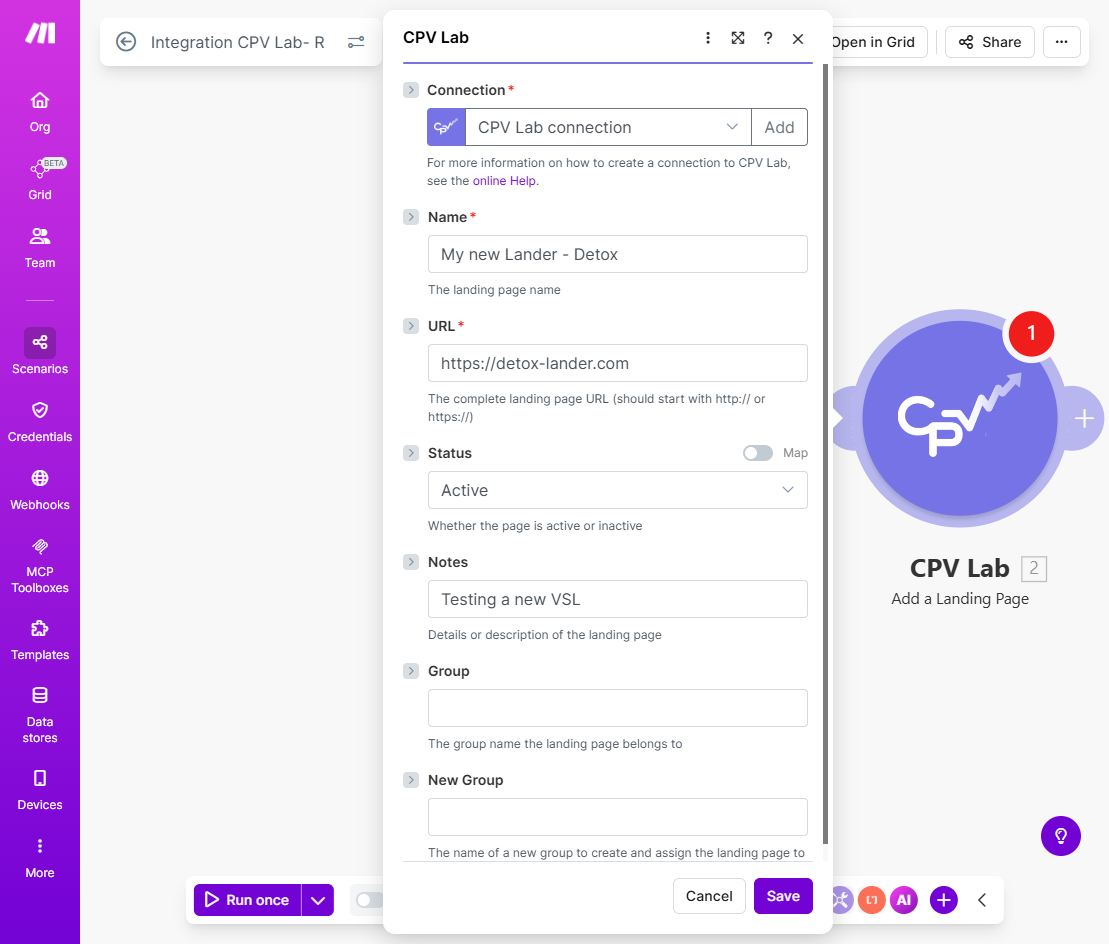
- Add the CPV Lab module: Add Landing Page.
- Select your CPV Lab connection.
- Fill in:
- Landing Page Name - the name as it will appear in CPV Lab
- Landing Page URL - the full URL of the new page
- Status, Notes, Group (optional) - to keep things organized
- Add the CPV Lab module: Assign Landing Page to Campaign.
- Select the Campaign you want to add this LP to.
- Map the Landing Page ID from the previous step - Make.com passes it automatically.
- Set the traffic share for the new LP (e.g. 50% for an even split test).
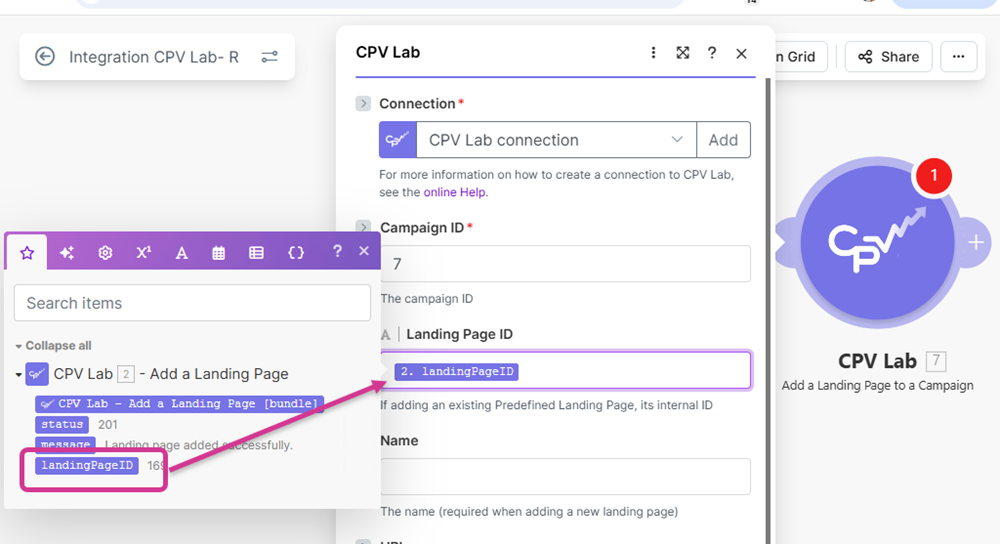
- Save and run the scenario.
✅ The new landing page will appear in your CPV Lab campaign, ready for split testing - without you touching the tracker.
Example Scenario 2 - Daily Conversion Report by Email
Use case: Every morning, you want an email showing how your campaigns performed in the last 24 hours - conversions, clicks, revenue, and ROI. No need to log in to check.
Tools used: Make.com + CPV Lab + Gmail (or any email app)
How it works:
[Trigger: Schedule - every day at 8:00 AM]
        ↓
[CPV Lab: Search Conversions - last 24 hours]
        ↓
[Gmail: Send Email with stats summary]
Steps to build this scenario:
Add a Schedule trigger.
- Set it to run once per day at the time you want your report (e.g. 8:00 AM).
[SCREENSHOT: Make.com Schedule trigger set to daily at 8:00 AM]
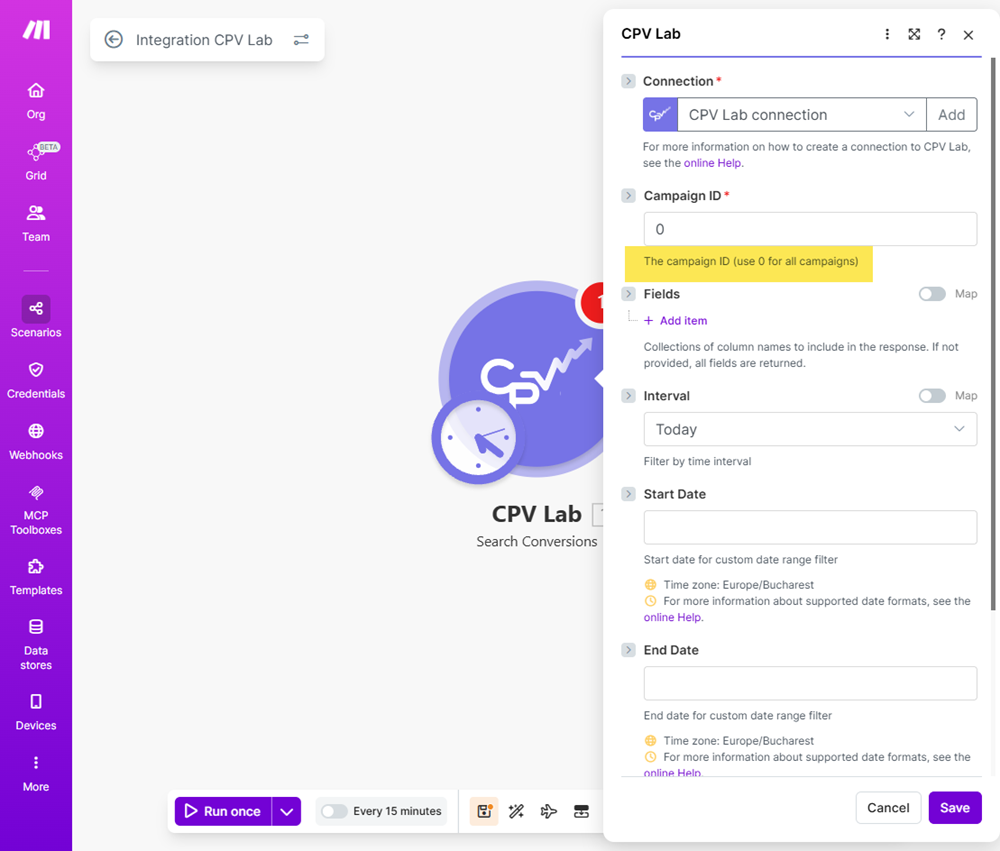
Add the CPV Lab module: Search Conversions.
- Select your connection.
- Set the date range to Last 24 hours.
- Select the campaigns you want to include, or pull all active campaigns.
Add a Gmail (or Email) module: Send an Email.
- Set To as your own email address.
- Set Subject to something like:
CPV Lab Daily Report - today's date - In the Body, map the fields from the CPV Lab module:
- Total Clicks
- Total Conversions
- Total Revenue
- ROI %
- Cost
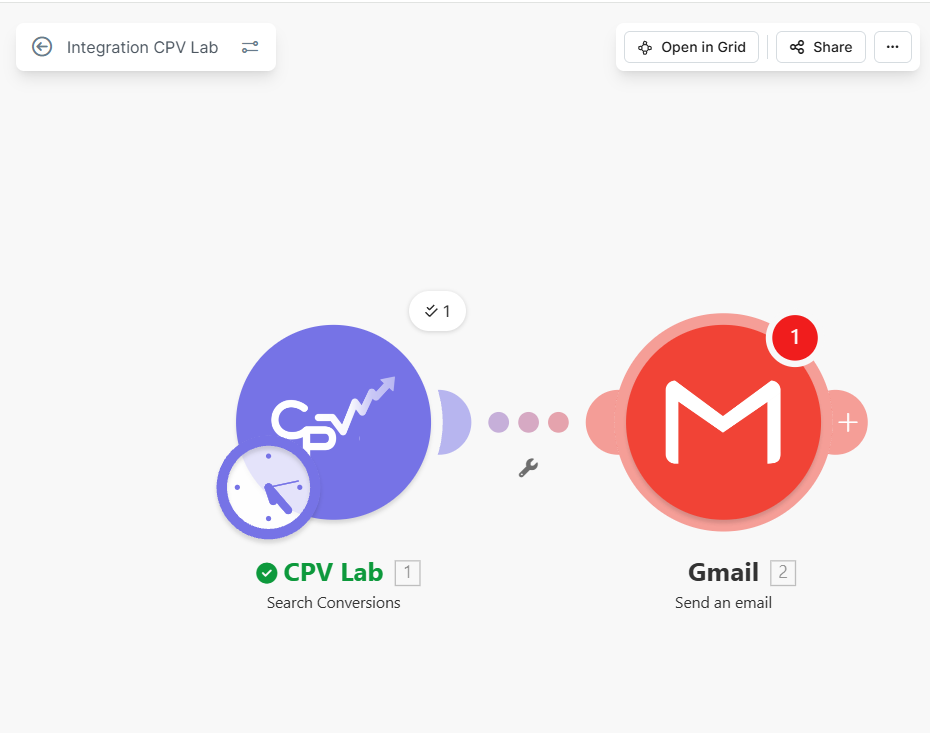
Save and activate the scenario.
✅ You will receive a daily email summary every morning. No login needed. You stay on top of your campaigns from your inbox.
💡 Tip: Add a filter between steps 2 and 3 to only send the email if conversions are above 0. This way you only get notified on days with actual activity.
Example Scenario 3 - Slack Alert When Conversions Drop
Use case: You are running a live campaign. If conversions drop to zero for more than one day, you want an instant Slack message so you can act fast.
Tools used: Make.com + CPV Lab + Slack
How it works:
[Trigger: Schedule - every 12 hours]
        ↓
[CPV Lab: Get Campaign Conversions - last 24 hours]
        ↓
[Filter: If Conversions = 0]
        ↓
[Slack: Send Message - "⚠️ No conversions in the last 24 hours on [Campaign Name]"]
Steps to build this scenario:
Add a Schedule trigger.
- Set it to run every 12 hours.
Add the CPV Lab module: Get Campaign Conversions.
- Set the date range to Last 24 hours.
- Select the specific campaign you want to monitor (or use "0" for all)
Add a Filter.
- Condition: Conversions is equal to 0
- This makes sure the Slack message only fires when there are no conversions.
Add a Slack module: Send a Message.
- Select your Slack workspace and channel (e.g.
#campaign-alerts). - Write the message, for example:
⚠️ Alert: No conversions in the last 24 hours.
Campaign: Campaign Name
Clicks: Clicks
Check your campaign now.
- Select your Slack workspace and channel (e.g.
Save and activate the scenario.
✅ You will get a Slack ping any time a campaign goes cold. Catch problems early - before you waste more ad spend.
💡 Tip: You can also add a second filter branch to alert you when ROI drops below a threshold - for example, below 0% - so you know when a campaign is running at a loss.
Example Scenario 4 - Log Clicks and Conversions to Google Sheets
Use case: You want a running log of all clicks and conversions from your campaigns saved automatically in a Google Sheet. Useful for weekly reporting, sharing with clients, or building custom dashboards.
Tools used: Make.com + CPV Lab + Google Sheets
How it works:
[Trigger: New Conversion / Visitor Recorded - CPV Lab]
        ↓
[Google Sheets: Add a Row with conversion data]
Steps to build this scenario:
Add the CPV Lab trigger: Get Campaign Conversions / OR Get Visitor Stats.
- Select your connection.
- Select the campaign you want to track. Or leave it set to all campaigns.
Add a Google Sheets module: Add a Row.
- Select your Google Sheet and the sheet tab you want to log to.
- Map the following fields from the CPV Lab trigger:
- Date / Time
- Campaign Name
- Offer Name
- Revenue
- Click ID
- Country
- Device
Save and activate the scenario.
✅ Every time a conversion / A visitor is recorded in CPV Lab, a new row is added to your Google Sheet automatically. Your log stays up to date in real time.
💡 Tip: Connect this sheet to Google Looker Studio to build a live visual dashboard from your CPV Lab data - useful for client reporting or team overviews.
Troubleshooting
The CPV Lab app is not showing in Make.com.
- Make sure you installed it using the invitation link at the top of this guide. The app is not in the public Make.com directory yet.
My connection fails when I save it.
- Double-check your API key from General Settings ➡️ API in CPV Lab.
- Make sure your Base URL does not have a trailing slash (e.g. use
https://tracker.yourdomain.comnothttps://tracker.yourdomain.com/).
The trigger is not firing.
- Make sure the scenario is set to Active in Make.com.
- Check that the campaign in CPV Lab is receiving traffic.
- For webhook-based triggers, make sure the webhook URL is correctly registered.
I get a 401 or authentication error.
- Your API key may have changed. Go back to Settings ➡️ API in CPV Lab, copy the current key, and update your Make.com connection.
You may also find useful: